

Settings
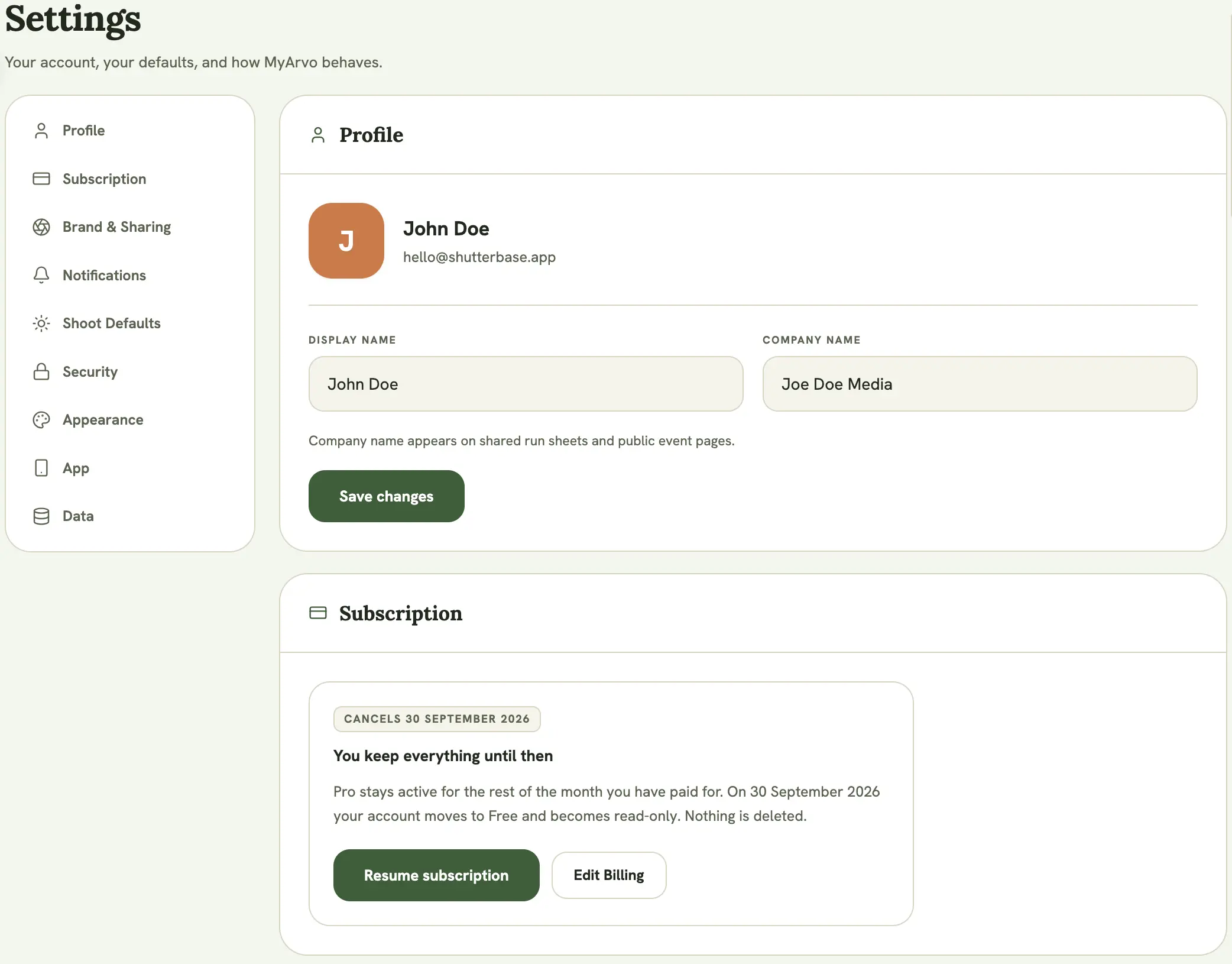
The Settings page is where you manage your own account: appearance, profile, subscription, security, and installing MyArvo as an app.
Appearance
Section titled “Appearance”Toggle between light and dark mode. Your choice is saved and follows you to any device you sign in on.
Profile
Section titled “Profile”Update your display name and company name. The company name appears on your shared run sheets and public event pages, so it’s worth keeping current if you shoot under a business name.
Subscription
Section titled “Subscription”Shows which plan you’re on and is where you choose or switch plans, cancel, or open the Stripe billing portal to update your card. On mobile it’s a separate Subscription row in the Settings index. See Plans & billing for the full breakdown.
Security
Section titled “Security”Change your password from here. You’ll need to enter your current password to confirm the change. This only applies if you signed up with email/password; Google accounts manage their password through Google.
Installing the app
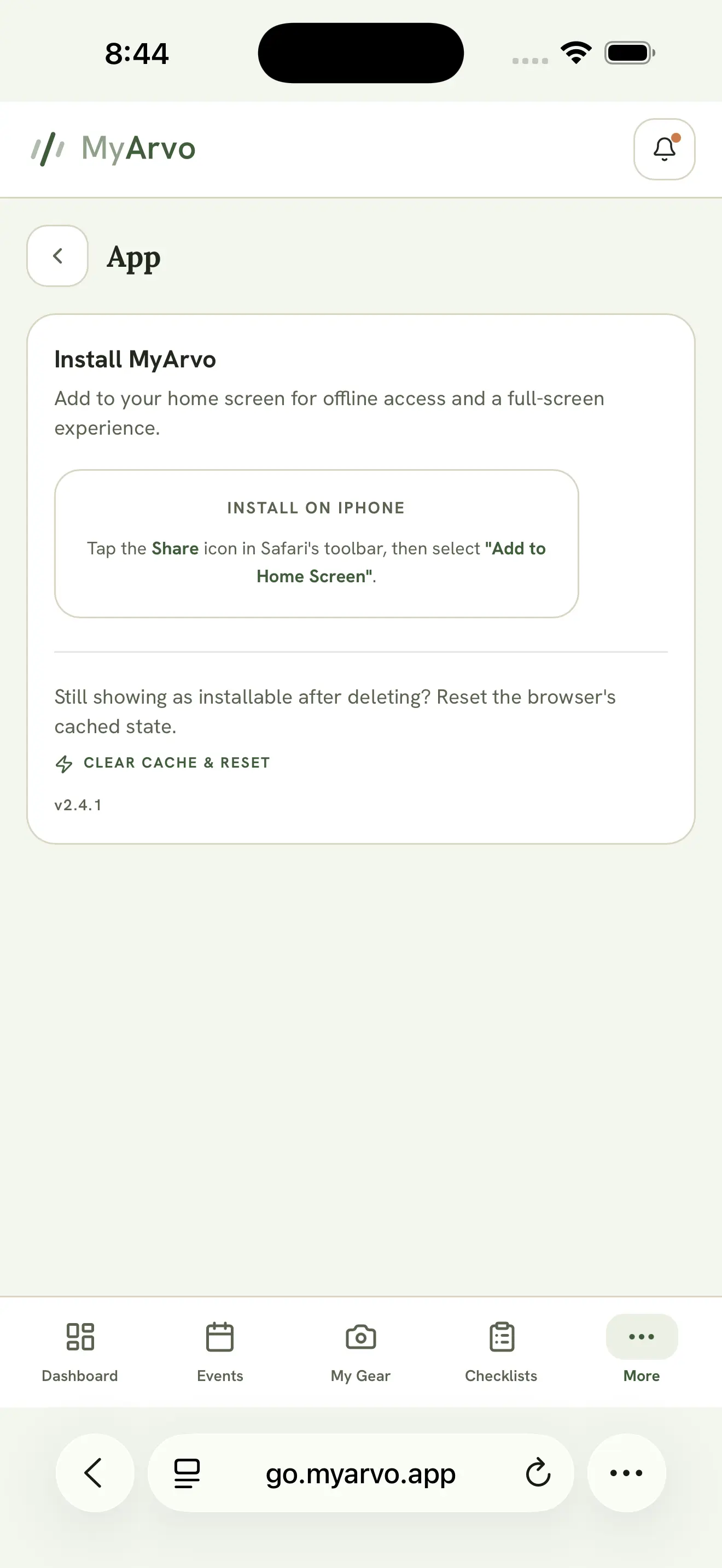
Section titled “Installing the app”MyArvo is a Progressive Web App (PWA), so installing it gives you a full-screen, app-like experience with an icon on your home screen.
- Android / desktop Chrome: select Install Now on the Settings page when it appears
- iPhone / iPad (Safari): tap the Share icon in Safari’s toolbar, then Add to Home Screen. iOS doesn’t support the one-tap install prompt, so this manual step is required
Troubleshooting the installed app
Section titled “Troubleshooting the installed app”If the app seems stuck showing outdated content after an update, use Clear Cache & Troubleshooting Reset on the Settings page (only shown when running as an installed app). This clears the app’s cached files and service worker, then reloads.