

Gear attention flags
Not every piece of gear is ready to go back out. Flag it for attention: a lens that needs cleaning, a battery that’s degrading, anything that shouldn’t ship without being checked first.
Flagging an item
Section titled “Flagging an item”- Open the gear item from your inventory and select the pencil icon to edit
- Toggle Needs Attention on
- Add an issue note describing the problem
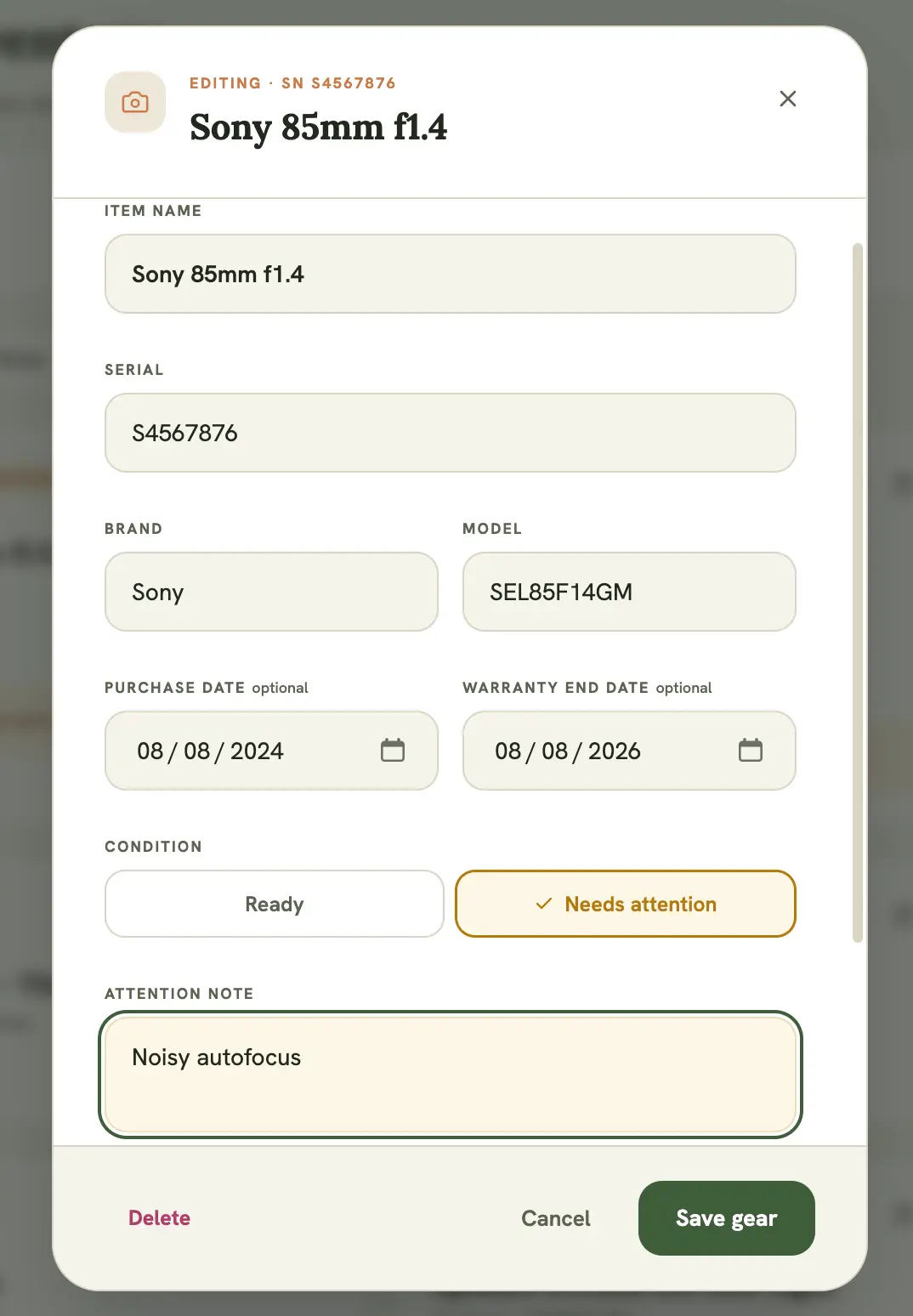
The note you add here is what shows up alongside the flag on the dashboard and on the item’s card in your inventory, so it’s worth being specific. “Battery drains fast” is more useful later than just a flag with no context.
Clearing a flag
Section titled “Clearing a flag”Once the issue is resolved, open the item and toggle Needs Attention off again. It’ll drop out of the dashboard’s Ready count immediately.
Where flags show up
Section titled “Where flags show up”Flagged items appear in your dashboard’s gear status section, combined with two other automatic sources. See Locker stats for how those are combined.