

Understanding the dashboard
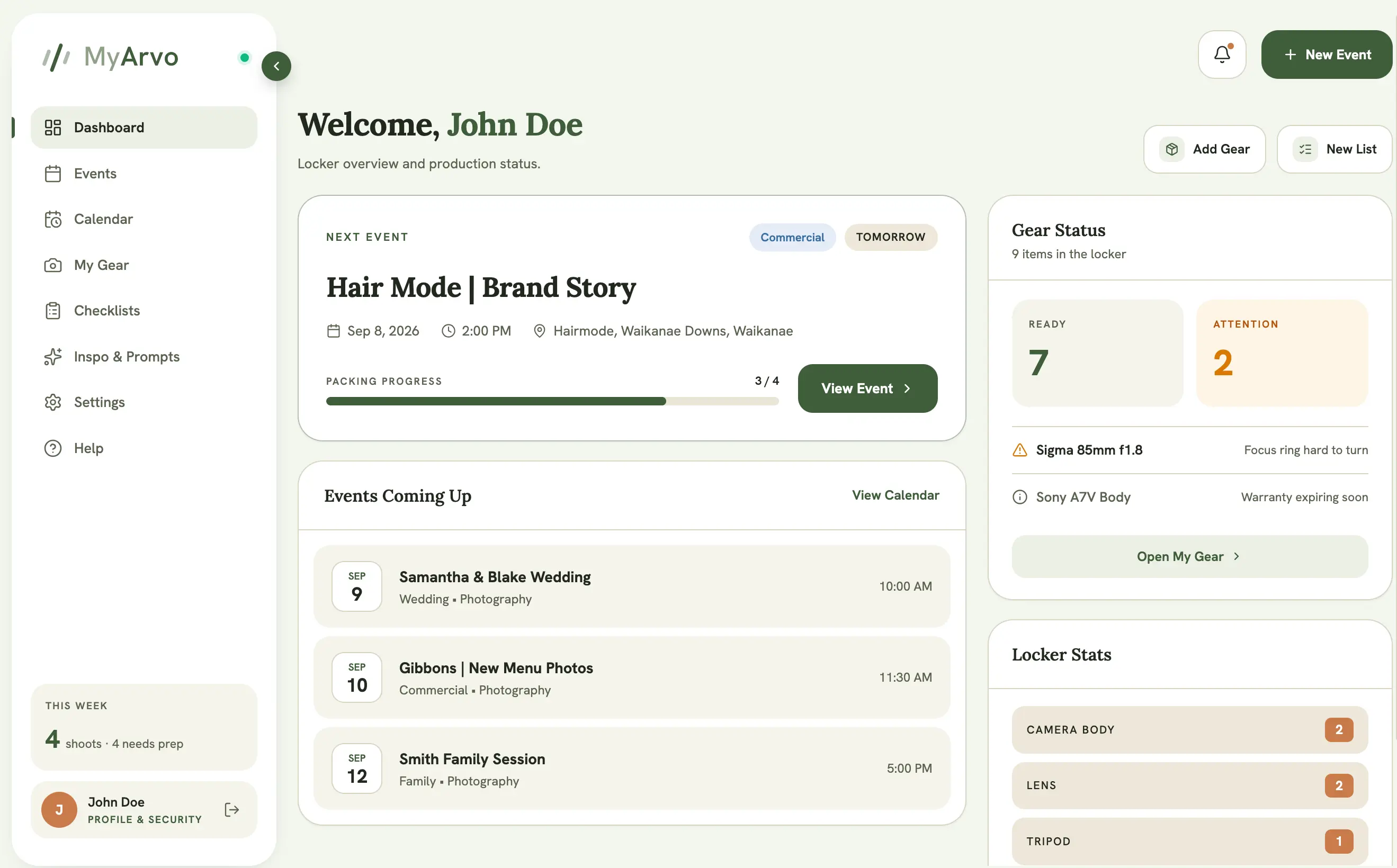
The dashboard is the first thing you see when you sign in, and it’s built to answer one question at a glance: what needs my attention right now?
Banners
Section titled “Banners”Just under the page header, MyArvo shows a banner when something needs your attention: a prompt to confirm your email address, or a note about your plan (trial ending soon, a failed card payment, or a read-only account). These stay hidden the rest of the time. See Plans & billing.
Pending invitations
Section titled “Pending invitations”If someone has shared an event with you, an invitations panel appears at the top of the dashboard listing who shared it (their name, and their company name if they’ve set one) and the event’s name, with Accept and Decline buttons. See Collaborators & shares.
Quick actions
Section titled “Quick actions”Three quick action buttons (New Event, Add Gear, New List) let you jump straight into creating something without navigating through menus. On a read-only Free account these are shown but disabled.
Up Next card
Section titled “Up Next card”The hero card shows your next upcoming event: name, category, date, and start time, pulled from whichever event on your calendar is soonest. Beneath it, an Events Coming Up list shows the next five events after that, each linking straight to its event page.
Gear status
Section titled “Gear status”The gear status section surfaces anything in your kit that needs a look before it goes out on a job. This includes:
- Gear you’ve manually flagged (see Gear attention flags)
- Checklist items from past events that were never marked as returned
- Gear with warranties expiring within 30 days, or already expired
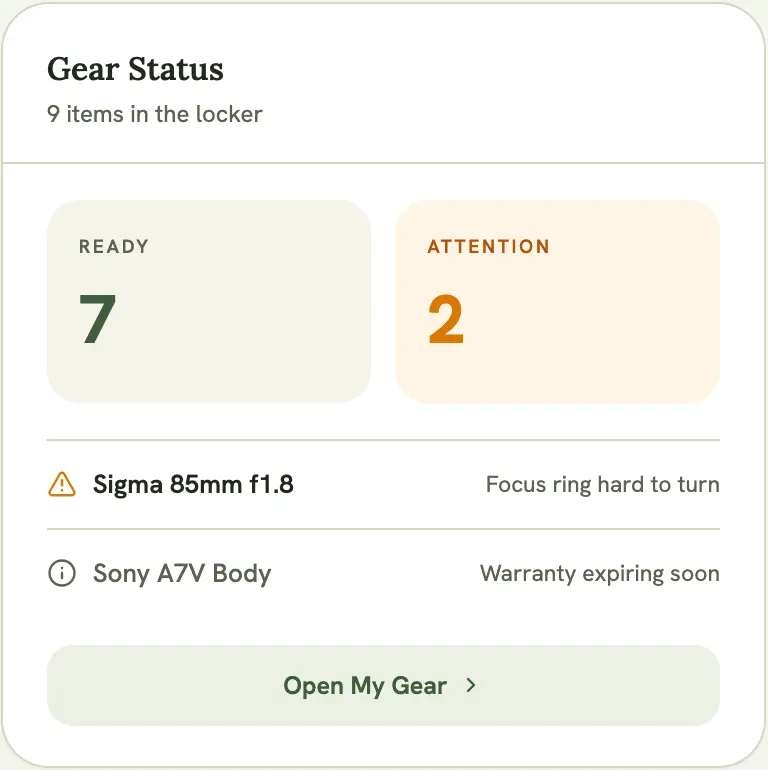
These three sources are deduplicated into a single Ready count, so a single problem item doesn’t get counted more than once even if it shows up in more than one source.
The right-hand column shows your Total Gear and Ready counts, along with your Locker Stats. See Locker stats for details on what’s included there.