

Event timelines
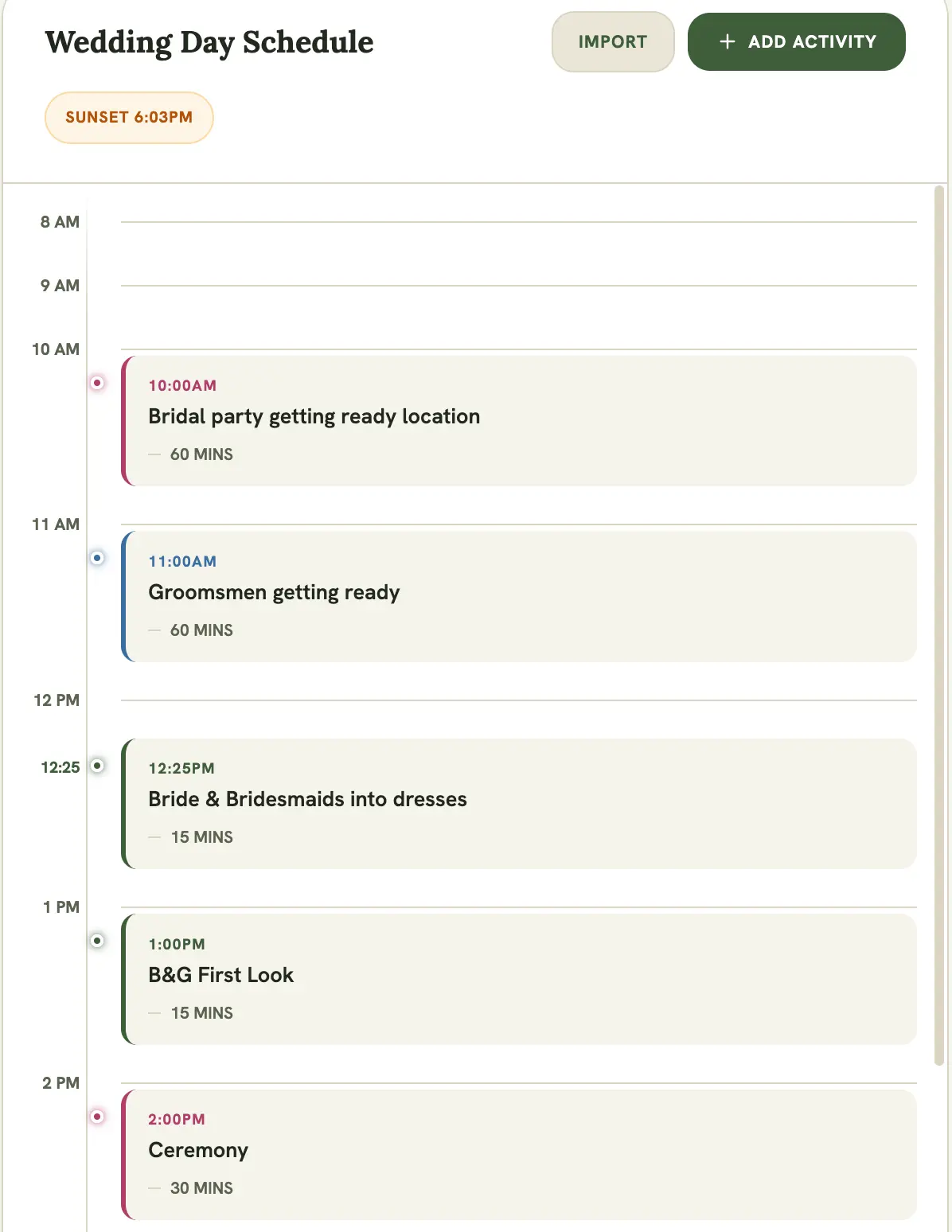
An event’s timeline lays out what’s happening and when. It starts in the early morning and trims the empty hours after your last activity, so the schedule doesn’t trail off into blank evening slots.
Adding timeline items
Section titled “Adding timeline items”Select the + button on the timeline to add an entry. Each entry has a time, a duration (5 minutes up to 2 hours), a title, and optional notes for gear or shot details specific to that block. Entries are laid out in order automatically as you add or edit them.
Getting notified for an entry
Section titled “Getting notified for an entry”Open any timeline entry and toggle Notify me for this activity to get a push notification when it’s coming up. Choose to be notified right at the start time, or 5 to 60 minutes before. See Push notifications.
Bulk importing a schedule
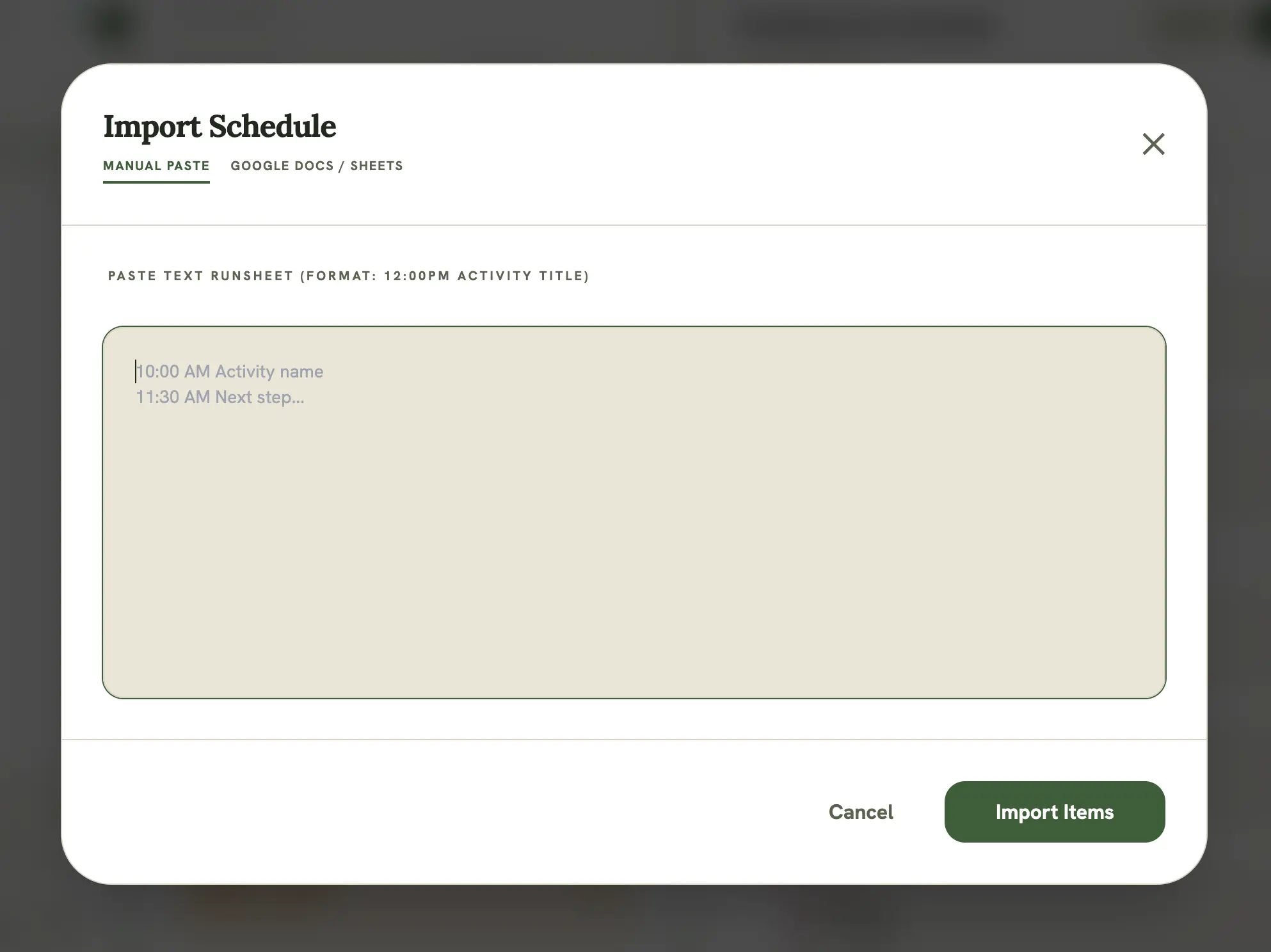
Section titled “Bulk importing a schedule”Rather than adding entries one at a time, select Bulk Import on the
timeline to paste a plain-text runsheet (one line per entry, e.g.
10:00 AM Getting ready) or fetch one directly from a public Google Docs
link.
Golden hour
Section titled “Golden hour”For weddings with a sunset time set, select Add Golden Hour to Timeline from the event’s edit screen to automatically drop a Golden Hour session and a Sunset marker into the schedule, timed an hour before sunset.
Overlapping items
Section titled “Overlapping items”If two timeline entries overlap, MyArvo lays them out side-by-side rather than stacking them, so you can see conflicts at a glance instead of having to scroll through a single overlapping mess.
Mobile view
Section titled “Mobile view”On smaller screens, the timeline scrolls independently within its own panel so you can move through the day’s schedule without losing your place on the rest of the event page.