

Using the content calendar
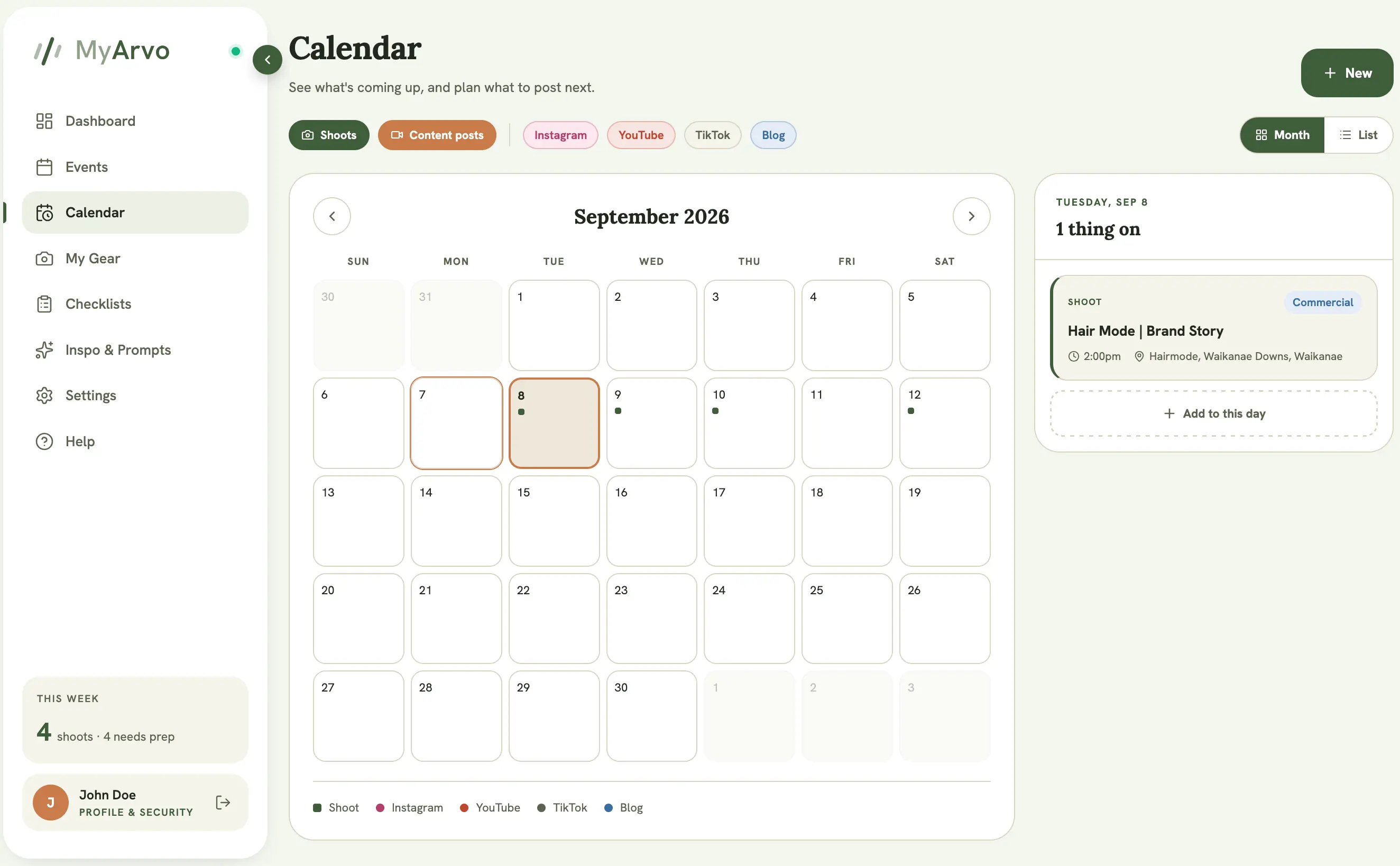
The Content Calendar shows your production events and your planned social content posts side by side, so you can see what’s shot and what’s being posted without switching between two different views.
Month and list views
Section titled “Month and list views”Switch between Month (a calendar grid with a dot per event or content post on each day) and List (a flat, scrollable list of everything, sorted by date). Selecting a day in month view shows that day’s agenda below the grid.
Adding an event or a content post
Section titled “Adding an event or a content post”Select New, then choose whether to create a production event (which opens the same event creation flow as the Events page) or a content post. Both need a confirmed email address and an active trial or Pro plan.
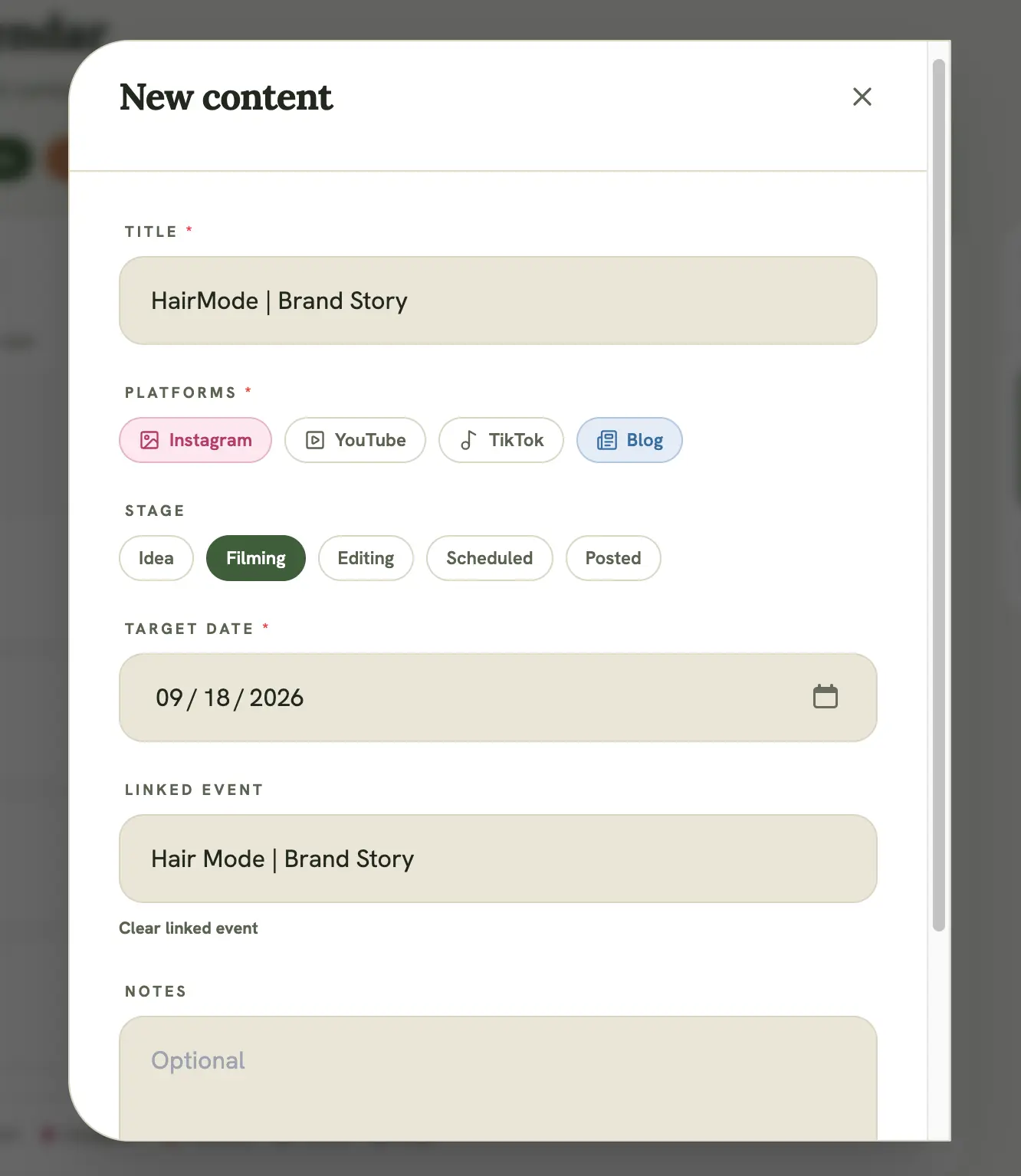
A content post has:
- A title and target date
- One or more platforms: YouTube, Instagram, TikTok, or Blog
- A stage: Idea, Filming, Editing, Scheduled, or Posted
- An optional link to one of your production events
- Optional notes
Filtering
Section titled “Filtering”Use the Events / Content posts toggles to show or hide each type, and the platform chips to narrow content posts down to specific platforms.
Advancing a content post’s stage
Section titled “Advancing a content post’s stage”Open a content post from the calendar to see its details and move it along, from Idea through to Posted, as you progress through production.
Deleting
Section titled “Deleting”Deleting an event from the calendar removes it (and its linked checklist) for everyone on the team, same as deleting it from the Events page. Deleting a content post only removes that post.